
Management UI
While Everruns is a headless agent platform designed for API-first integration, it provides an optional management UI for administrative tasks and session monitoring.
Overview
Section titled “Overview”The management UI is a Next.js application that provides:
- Agent management (create, edit, delete)
- Session monitoring and chat interface
- Capabilities browser
- Settings management (LLM providers, personal access tokens, team members)
- Dashboard with system statistics
Access the UI at http://localhost:9300 when running locally.
Navigation
Section titled “Navigation”The sidebar provides access to main sections:
| Section | Description |
|---|---|
| Dashboard | Overview statistics and quick actions |
| Agents | List, create, and manage agents |
| Capabilities | Browse available capabilities |
| Settings | Configure providers, personal access tokens, and team members |
Dashboard
Section titled “Dashboard”The dashboard provides an at-a-glance view of your system:
- Stats Cards: Total agents, active sessions, and other metrics
- Recent Agents: Quick access to recently created or updated agents
- Quick Actions: Shortcuts to create agents or browse the agent list
Agents
Section titled “Agents”Agent List
Section titled “Agent List”The agents page displays all agents in a card grid layout.
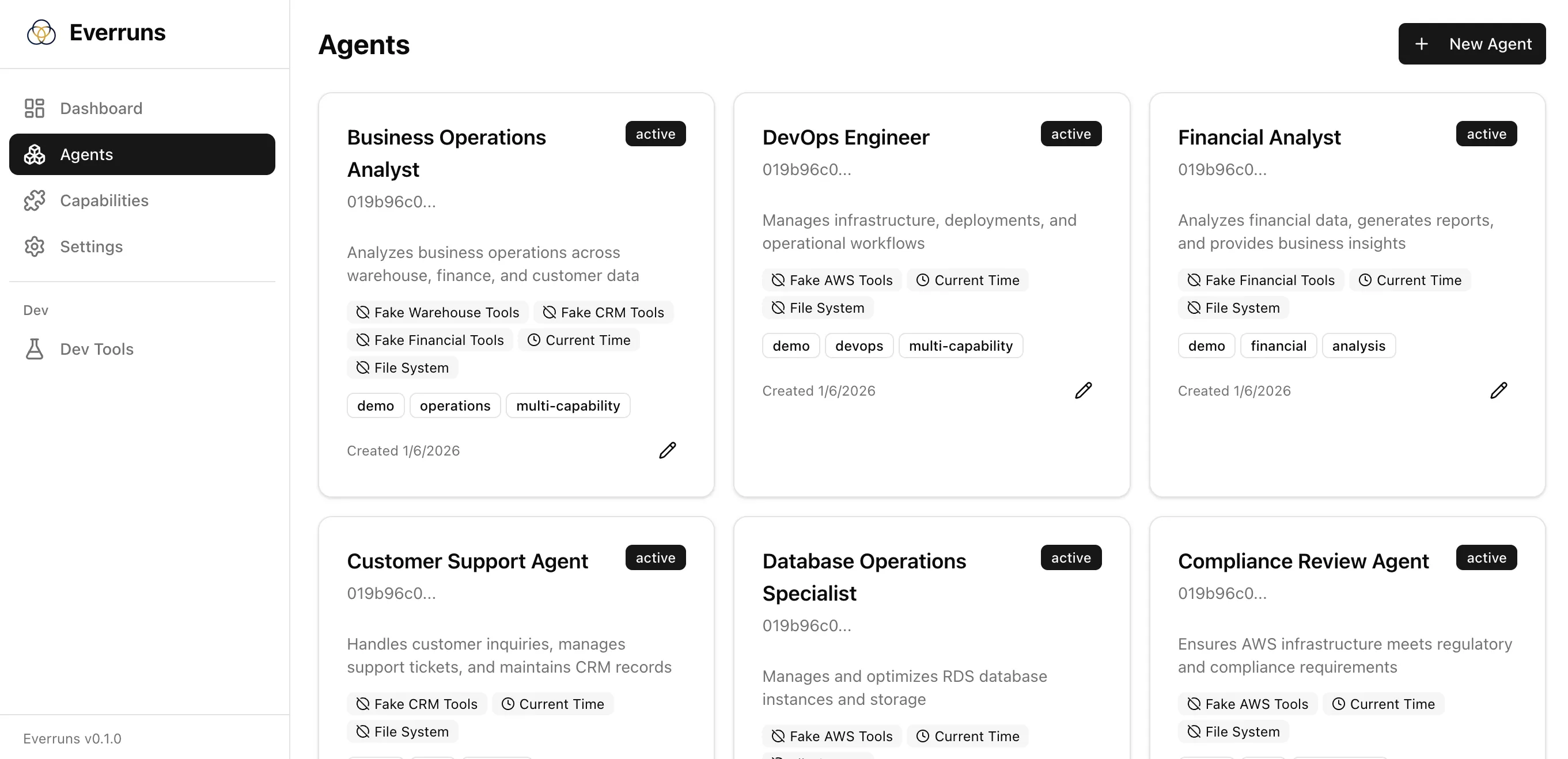
Each card shows:
- Agent name and status badge (active/inactive)
- Truncated ID
- Description preview
- Enabled capabilities with icons
- Tags
- Creation date
- Edit button
Click a card to view the agent details, or click the edit icon to modify the agent.
Agent Detail
Section titled “Agent Detail”The agent detail page shows:
- System Prompt: Full system prompt with markdown rendering
- Sessions List: All sessions for this agent with status indicators
- Capabilities: Enabled capabilities with descriptions
- Configuration: Default model, description, tags, timestamps
Actions available:
- Edit: Modify agent configuration
- New Session: Create a new conversation session
Create/Edit Agent
Section titled “Create/Edit Agent”The agent form allows you to configure:
- Name: Display name for the agent
- Description: Optional description
- System Prompt: Instructions for the agent (supports markdown)
- Default Model: LLM model to use for conversations
- Capabilities: Enable/disable available capabilities
- Tags: Organizational tags
Sessions
Section titled “Sessions”Session View
Section titled “Session View”Each session has three tabs:
Chat Tab
Section titled “Chat Tab”The primary interface for viewing and participating in conversations:
- Message history with user messages (dark bubbles) and agent responses
- Tool call visualization with expandable details
- Tool results displayed inline
- Message input with keyboard shortcuts (Enter to send, Shift+Enter for newline)
- Reasoning effort selector (for models that support extended thinking: Anthropic Claude, OpenAI GPT-5.x, o-series)
File System Tab
Section titled “File System Tab”Browse and manage files associated with the session’s sandboxed environment.
Events Tab
Section titled “Events Tab”View raw session events for debugging:
- Sequence number
- Event type (input.message, output.message.completed, tool.completed, etc.)
- Timestamp
- JSON data payload
Session Status
Section titled “Session Status”Sessions display their current status:
| Status | Badge | Description |
|---|---|---|
| started | Outline | Newly created, no messages yet |
| idle | Secondary | Ready for input |
| active | Primary | Currently processing |
Capabilities
Section titled “Capabilities”The capabilities page lists all available functionality modules:
- Summary Panel: Counts by status (available, coming soon, deprecated)
- Category Tags: Filter by capability type
- Capability Cards: Click to view details including tools and configuration
Each capability card shows:
- Icon and name
- Identifier (for API use)
- Status badge
- Description
- Category tag
Settings
Section titled “Settings”LLM Providers
Section titled “LLM Providers”Configure language model providers:
- Add provider credentials (API keys)
- Enable/disable specific models
- Set default models for agents
Personal access tokens
Section titled “Personal access tokens”Manage personal access tokens for programmatic access. Tokens are tied to your user account (not an organization) and inherit access to every organization available to your account:
- Create new personal access tokens
- View existing tokens (values hidden)
- Revoke tokens
Members
Section titled “Members”View and manage team members (when authentication is enabled).